---
title: Practical Assessments
description: Verify competency with a face-to-face assessment.
---
[Skip to content](https://support.edapp.com/practicalassessments#main-content)
English
Show submenu for translations
![EdApp - logo dark mode-1.png\]](https://support.edapp.com/hs-fs/hubfs/EdApp%20-%20logo%20dark%20mode-1.png?height=40&name=EdApp%20-%20logo%20dark%20mode-1.png)
- [Default HubSpot Blog](https://edapp-5741180.hs-sites.com/blog)
Open main navigation
Close main navigation
- [Default HubSpot Blog](https://edapp-5741180.hs-sites.com/blog)
- English
Show submenu for translations
- [edapp.com](https://www.edapp.com/)
[edapp.com](https://www.edapp.com/)
Hello. How can we help you?
- There are no suggestions because the search field is empty.
1. [Help Center](https://support.edapp.com/?hsLang=en)
2. [Admin portal](https://support.edapp.com/admin-portal?hsLang=en)
3. [Engagement](https://support.edapp.com/admin-portal?hsLang=en#engagement)
# Practical Assessments
## Verify competency with a face-to-face assessment.
### **Contents**
[Overview](https://support.edapp.com/practicalassessments#overview)
[Creating an assessment](https://support.edapp.com/practicalassessments#creation)
[Conducting the assessment](https://support.edapp.com/practicalassessments#navigation)
[QR Code](https://support.edapp.com/practicalassessments#QRcode)
[Manual](https://support.edapp.com/practicalassessments#manualsearch)
[Learner's View](https://support.edapp.com/practicalassessments#learnerview)
[Use Cases](https://support.edapp.com/practicalassessments#usecase)
[Reporting](https://support.edapp.com/practicalassessments#Reporting)
[FAQ](https://support.edapp.com/practicalassessments#faq)
### **What are Practical Assessments?**
A Practical Assessment is a type of lesson within a course. They are used to perform in-person assessments to demonstrate knowledge of practical tasks.
Some example use cases include —
- Demonstrating store opening and closing procedures
- Demonstrating sales negotiation techniques
- Demonstrating how to change a tyre
- Verifying barista training
- Verifying safe operation of a forklift
### **Creating an assessment**
Creating a Practical assessment involves building your own assessment form using our drag-and-drop form builder. You can save your progress at any time.
1. Click into a course.
2. Click the '+' icon on the top left and select the lesson type 'Practical Assessment'.
3. On the top-middle, click 'Edit' to proceed to the editing screen of the practical assessment.
4. Drag and drop form fields from the left-hand panel to create your assessment form. Upon dragging a form field onto the canvas, you'll be prompted to configure settings and data for that field.
5. If you would like to add a signature to finish off your practical assessment form, you have the option to do so. Please see the below video for more help on how to add this.
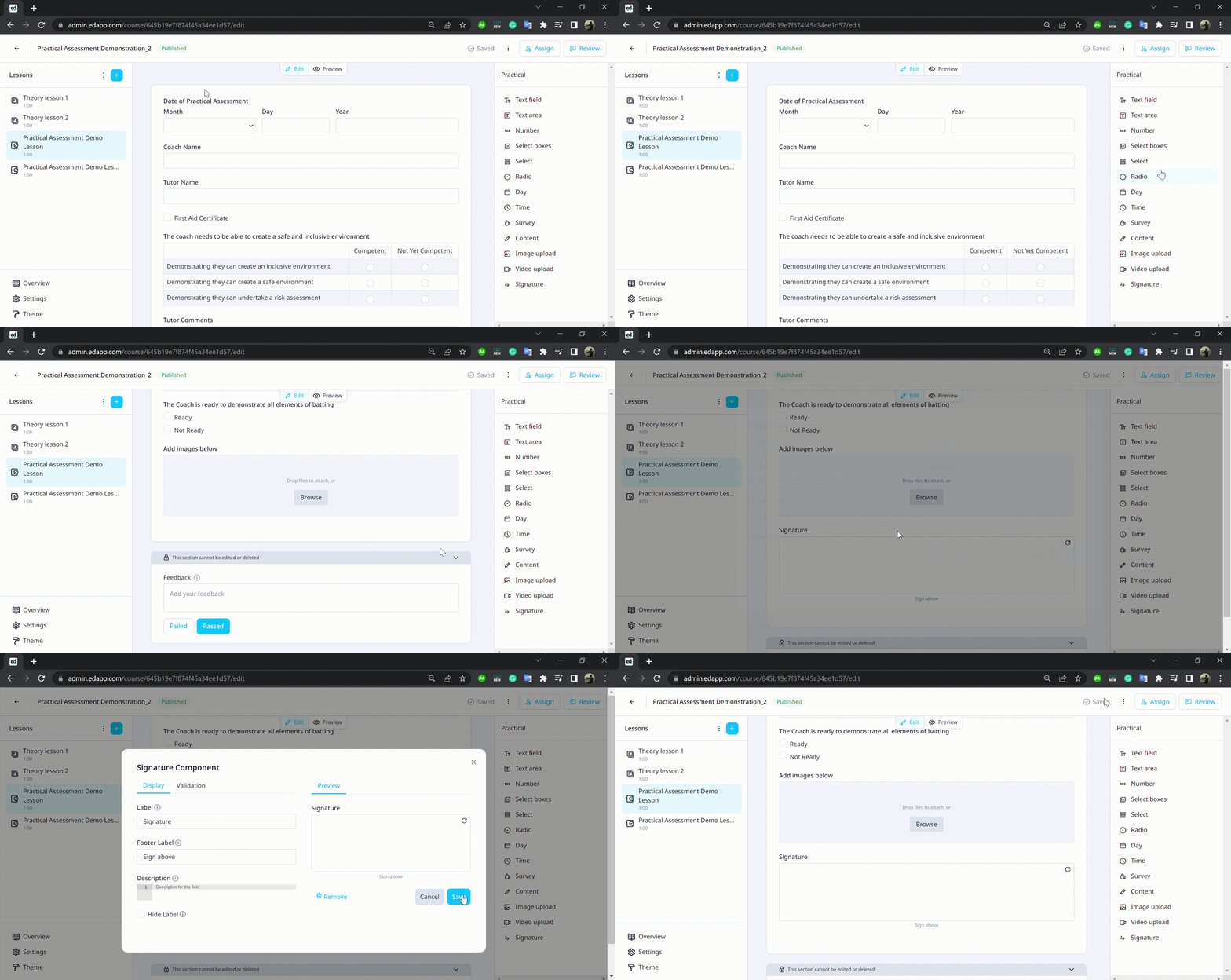
6. Wait for the save indicator on the top right to say 'Saved' to save changes.
7. When you're done creating your assessment form, navigate back to the practical assessment lesson page to preview your form on mobile, tablet and desktop.
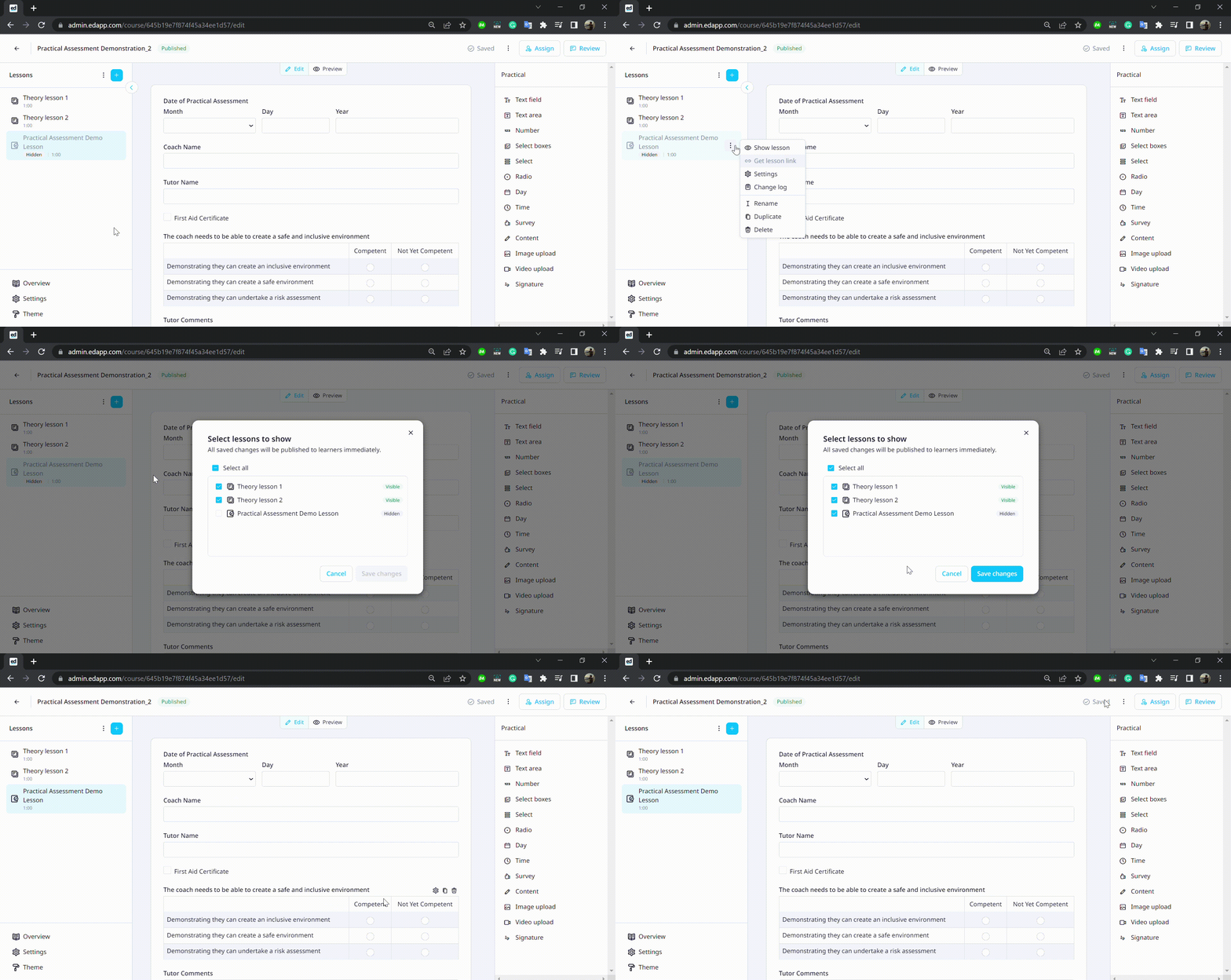
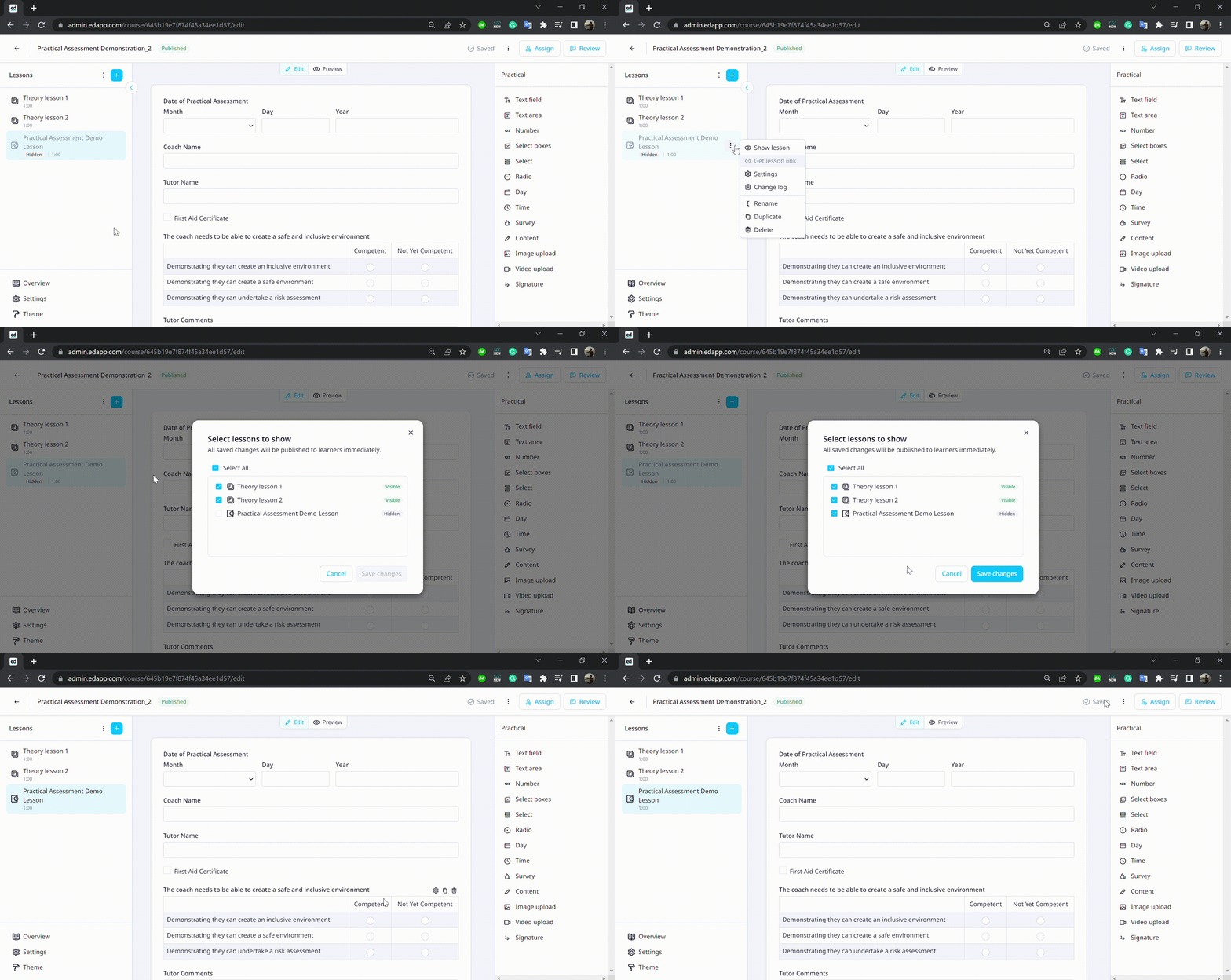
8. Publish your practical assessment. (Once you publish a course, you will be prompted to publish your lessons and practical assessments as well. To manually publish/unhide your practical assessment see the video below)
### **Navigation**
Any users with the **Admin** or **Facilitator** roles will be able to conduct practical assessments for learners. There are two methods to navigate to an assessment —
#### Method 1: QR code
1. Ask your learner to open EdApp and click into the course containing the assessment.
2. Ask your learner to click into the relevant practical assessment.
3. A QR code will appear on the learner's screen. Scan this QR code to be directed to the practical assessment for that course, for that particular learner.
%202-1.png?width=688&name=Practical%20Assessments%20(Learner)%202-1.png)Method 2: Manual search
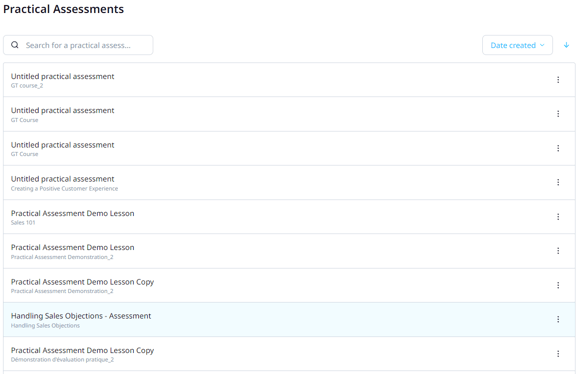
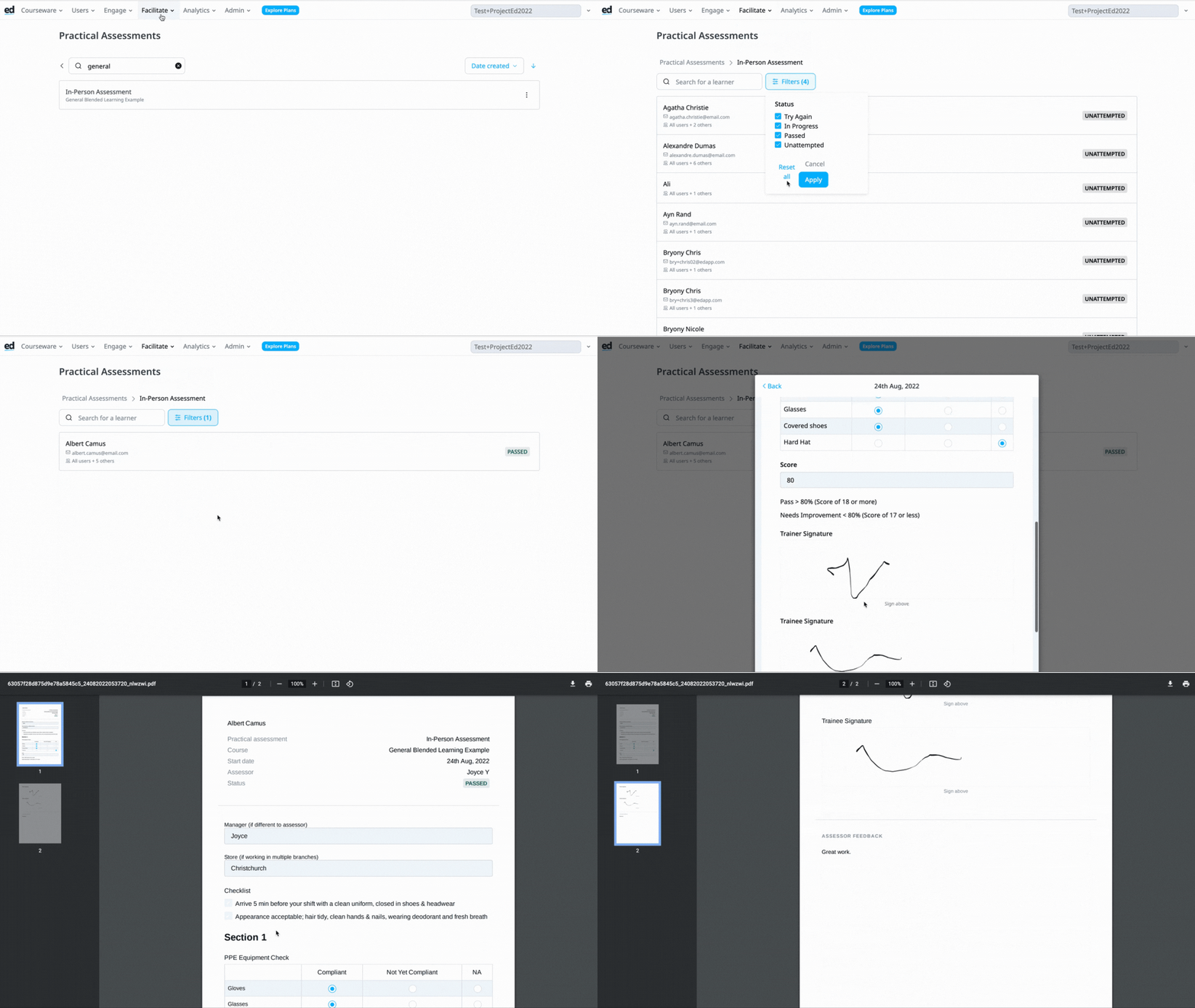
1. On the admin portal, navigate to *Facilitate → Practical Assessments*.
2. Click on the assessment you want to conduct.
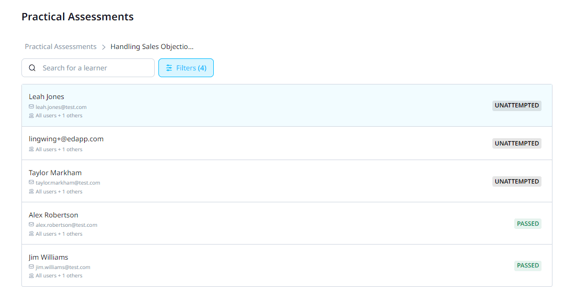
3. You'll see a list of all learners assigned to the assessment. Click on the learner you want to complete the assessment for.
4. Click 'Start practical assessment'.

### **Completing an assessment**
Filling out the assessment form can be done on mobile, tablet or desktop. Only users with the **Admin** or **Facilitator** role can complete assessments.
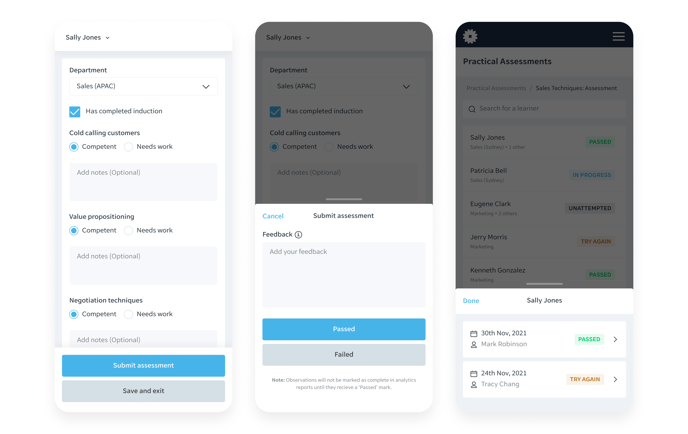
1. Once you've completed the assessment, hit 'Submit practical assessment'. You also have the option to save your progress and resume at a later time by clicking 'Save and exit'.
2. Add your overall feedback. Your learner will be able to quickly reference this feedback through the learner app.
3. Mark the assessment as being passed or failed. Passed assessments are marked as complete in analytics. If a learner receives a failed mark, the assessment will need to be re-attempted to be marked as complete.
### **Learner perspective**
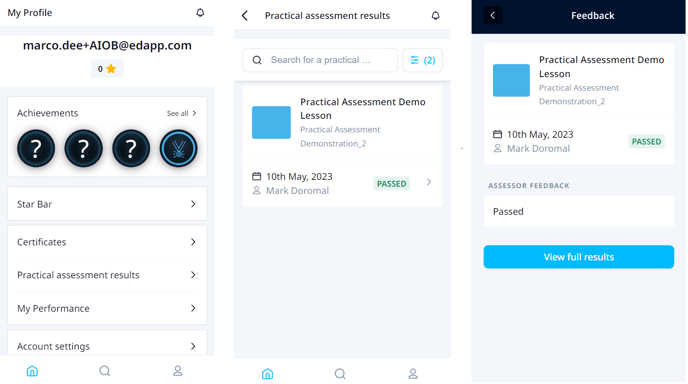
Learners are able to view all assessment attempts and feedback through the learner app. Feedback can be accessed by —
- Clicking into the practical assessment within the course, or
- Navigating to *My Profile → Practical assessment results *to view feedback and results of all completed practical assessments
### 
### Use Cases
**Time stamp**
00:00 Machinery Example with Joyce
08:41 Hospitality Example with Lucy
15:11 Customer Service Example with George
#### Reporting
Once assessments are passed/failed, the facilitator can access the past reports by going to:
Facilitate \> practical assessment \> select assessment \> select person \> export results
A practical assessment will look like a lesson within your course analytics within [Performance Dashboard](https://support.edapp.com/performance-dashboard?hsLang=en) and [CCBU](https://support.edapp.com/course-completion-by-user?hsLang=en).
Once a practical assessment is 'passed' then it will be marked as 'complete' within your analytics.
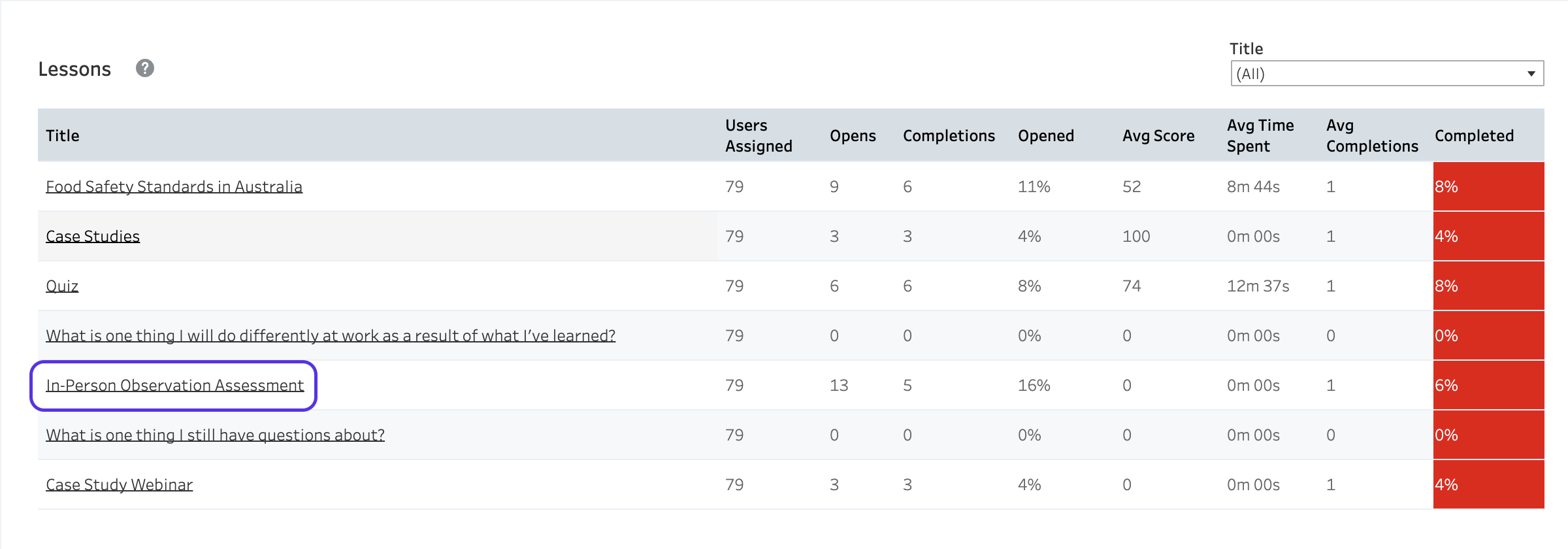
If 'failed', there will be no completion recorded against analytics. You can reattempt the assessment until they pass.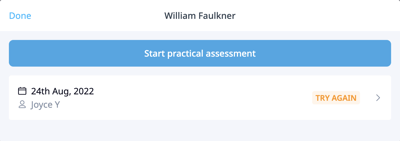
### **FAQs**
#### **General**
**What are Practical Assessments?**
A checklist-style feature in which admins or facilitators can start in-person assessments using a custom checklist form to capture the learner's performance.
**What does a Practical Assessment look like in EdApp?**
Practical Assessments appear as a type of lesson within a course.
**Are Practical Assessments mandatory for learners to complete?**
Like any lesson, Practical Assessments can be made mandatory or optional for course completion. You can configure mandatory lessons for any course by clicking Course Settings → Completion.
**Who is able to see my Practical Assessments?**
Practical Assessments function like any other lesson type. All learners assigned to the course will be assigned the Practical Assessment.
**Who can complete Practical Assessments?**
Any user with an Admin or Facilitator role will be able to complete assessments for learners. Users without these roles will be denied access.
**Will facilitators only be able to perform Practical Assessments for particular user groups? **
By default there will be no restrictions, any user with the Admin or Facilitator role will have access to all practical assessments created. However, Facilitators can also be assigned as a facilitator to a specific user group(s) only. Learn more about [assigning roles and permissions ](https://support.edapp.com/roles-permissions?hsLang=en)
**Will learners be able to retake Practical Assessments? **
Once the learner has passed the practical assessment it will be marked as complete and they will not be able to attempt it again.
**Will learners be able to view the full results of their Practical Assessment attempt? **
Yes, by default all learners will have access to view the completed assessment form. This setting can be turned off by an Admin or Author in the following way.
1. Click into a Practical assessment lesson.
2. In the top-right corner click 'Practical assessment settings' and deselect 'Learners can view completed checklist'. the lesson type 'Practical Assessment'.
**Will Practical Assessments appear in analytics? **
Yes, practical assessment lessons will appear in exactly the same way as any other lesson. At lesson-level reporting, you will see –
- Lesson title
- Completion (100 for pass and 0 for fail)
- Completion date
**How does scoring work for Practical Assessment lessons? **
Slide level analytics, including scoring are not available at the stage.
**Will a facilitator be able to upload photos and videos to a Practical Assessment? **
Yes, images can be uploaded and we will support video upload in the near future.
**Can Practical Assessments be translated in other languages? **
Yes, if a course containing a practical assessment lesson is translated to another language the practical assessment lesson will be translated.
**Will a facilitator be able to perform a Practical Assessment offline? **
Practical Assessments cannot be completed offline at the time being.
#### **Admin**
**How do I set up a Practical Assessment?**
1. Click into a course.
2. Click the '+' icon on the top left and select the lesson type 'Practical Assessment'.
3. On the top-middle, click 'Edit' to proceed to the editing screen of the practical assessment.
4. Drag and drop form fields from the left-hand panel to create your assessment form. Upon dragging a form field onto the canvas, you'll be prompted to configure settings and data for that field.
5. Wait for the save indicator on the top right to say 'Saved' to save changes.
6. When you're done creating your assessment form, navigate back to the practical assessment lesson page to preview your form on mobile, tablet and desktop.
7. Publish your practical assessment. (Once you publish a course, you will be prompted to publish your lessons and practical assessments as well. To manually publish/unhide your practical assessment see the video below)
**What do Practical Assessments look like for facilitators?
.png?width=688&name=Practical%20Assessments%20(Facilitator).png)**
Facilitators and admins will be able to browse practical assessments by navigating to the menu item Facilitate → Practical Assessments. Here you can view a list of published assessments and the learners assigned to each. Facilitators and admins can then complete assessments for any learner.
Alternatively, facilitators and admins can scan the QR code provided on the learner's assessment screen to begin the assessment. e
#### **Learner**
**What do Practical Assessments look like for learners?**
**.png?width=688&name=Practical%20Assessments%20(Learner).png)**
Practical Assessments appear within a course's lesson list. Clicking onto an assessment will display a QR code that facilitators and admins can scan to begin the assessment.
Learners are able to view all completed attempts at an assessment and review feedback. Learners are also optionally able to click *View full results* to generate a PDF of their completed assessment form.
**Why can't I view my completed assessment form?**
Your admin may have disabled this function for you, however you will always be able to view the overall comment left by your facilitator on any given assessment.
- [Getting started](https://support.edapp.com/getting-started?hsLang=en#main-content)
- [Get Started in 5 Minutes](https://support.edapp.com/getting-started?hsLang=en#get-started-in-5-minutes)
- [Lessons & Courses](https://support.edapp.com/getting-started?hsLang=en#lessons-courses)
- [Basic User Management](https://support.edapp.com/getting-started?hsLang=en#basic-user-management)
- [Course Library](https://support.edapp.com/getting-started?hsLang=en#course-library)
- [Definitions](https://support.edapp.com/getting-started?hsLang=en#definitions)
- [Admin portal](https://support.edapp.com/admin-portal?hsLang=en#main-content)
- [Advanced User Management](https://support.edapp.com/admin-portal?hsLang=en#advanced-user-management)
- [Lesson Management](https://support.edapp.com/admin-portal?hsLang=en#lesson-management)
- [Course Management](https://support.edapp.com/admin-portal?hsLang=en#course-management)
- [App Customisation](https://support.edapp.com/admin-portal?hsLang=en#app-customisation)
- [Peer Learning](https://support.edapp.com/admin-portal?hsLang=en#peer-learning)
- [Engagement](https://support.edapp.com/admin-portal?hsLang=en#engagement)
- [Analytics](https://support.edapp.com/admin-portal?hsLang=en#analytics)
- [Features](https://support.edapp.com/admin-portal?hsLang=en#features)
- [EducateAll](https://support.edapp.com/admin-portal?hsLang=en#educateall)
- [Sharing Content](https://support.edapp.com/admin-portal?hsLang=en#sharing-content)
- [Integrations](https://support.edapp.com/admin-portal?hsLang=en#integrations)
- [Learner's app](https://support.edapp.com/learners-app?hsLang=en#main-content)
- [Logging In](https://support.edapp.com/learners-app?hsLang=en#logging-in)
- [Taking Courses](https://support.edapp.com/learners-app?hsLang=en#taking-courses)
- [Features For Learners](https://support.edapp.com/learners-app?hsLang=en#features-for-learners)
- [Extras](https://support.edapp.com/learners-app?hsLang=en#extras)
- [Star Bar](https://support.edapp.com/learners-app?hsLang=en#star-bar)
- [Creator Tool](https://support.edapp.com/creator-tool?hsLang=en#main-content)
- [Branding](https://support.edapp.com/creator-tool?hsLang=en#branding)
- [Templates](https://support.edapp.com/creator-tool?hsLang=en#templates)
- [Course & Lesson Configurations](https://support.edapp.com/creator-tool?hsLang=en#course-lesson-configurations)
- [Copying Slides/Lessons/Courses](https://support.edapp.com/creator-tool?hsLang=en#copying-slides-lessons-courses)
- [Translations](https://support.edapp.com/creator-tool?hsLang=en#translations)
- [Content](https://support.edapp.com/creator-tool?hsLang=en#content)
- [Tips and tricks](https://support.edapp.com/tips-and-tricks?hsLang=en#main-content)
- [Learning Programme Management](https://support.edapp.com/tips-and-tricks?hsLang=en#learning-programme-management)
- [Authoring](https://support.edapp.com/tips-and-tricks?hsLang=en#authoring)
- [Best Practices](https://support.edapp.com/tips-and-tricks?hsLang=en#best-practices)
- [Programme Success](https://support.edapp.com/tips-and-tricks?hsLang=en#programme-success)
- [Engagement](https://support.edapp.com/tips-and-tricks?hsLang=en#engagement)
- [Launch Kit](https://support.edapp.com/tips-and-tricks?hsLang=en#launch-kit)
- [FAQ](https://support.edapp.com/faq?hsLang=en#main-content)
- [Lessons & Courseware](https://support.edapp.com/faq?hsLang=en#lessons-courseware)
- [Authoring](https://support.edapp.com/faq?hsLang=en#authoring)
- [User Registration & Management](https://support.edapp.com/faq?hsLang=en#user-registration-management)
- [Display](https://support.edapp.com/faq?hsLang=en#display)
- [Engagement](https://support.edapp.com/faq?hsLang=en#engagement)
- [Peer Learning](https://support.edapp.com/faq?hsLang=en#peer-learning)
- [Knowledge Performance](https://support.edapp.com/faq?hsLang=en#knowledge-performance)
- [Analytics](https://support.edapp.com/faq?hsLang=en#analytics)
- [System & Technical Support](https://support.edapp.com/faq?hsLang=en#system-technical-support)
- [Subscriptions & Pricing](https://support.edapp.com/faq?hsLang=en#subscriptions-pricing)
- [Educate All](https://support.edapp.com/faq?hsLang=en#educate-all)
- [Contact & Support](https://support.edapp.com/faq?hsLang=en#contact-support)
- [Webinars](https://support.edapp.com/webinars?hsLang=en)
- [Technical / API documentation](https://support.edapp.com/technical-api-documentation?hsLang=en#main-content)
- [Single Sign On for the Learner's Portal](https://support.edapp.com/technical-api-documentation?hsLang=en#single-sign-on-for-the-learners-portal)
- [Single Sign-on for Admin Portal](https://support.edapp.com/technical-api-documentation?hsLang=en#single-sign-on-for-admin-portal)
- [Integrations](https://support.edapp.com/technical-api-documentation?hsLang=en#integrations)
- [API](https://support.edapp.com/technical-api-documentation?hsLang=en#api)
- [Legal documentation](https://support.edapp.com/legal-documentation?hsLang=en#main-content)
- [Third Party Gateway](https://support.edapp.com/legal-documentation?hsLang=en#third-party-gateway)
- [Privacy & Terms](https://support.edapp.com/legal-documentation?hsLang=en#privacy-terms)
- [Troubleshooting](https://support.edapp.com/troubleshooting?hsLang=en)
- [EdApp to SC Migration](https://support.edapp.com/edapp-to-sc-migration?hsLang=en)
- [Default HubSpot Blog](https://edapp-5741180.hs-sites.com/blog)
[](http://edapp.com)
EdApp Help Center
Copyright © 2026, EdApp Pty Ltd
```json
{
"@context" : "https://schema.org",
"@type" : "VideoObject",
"contentUrl" : "https://5741180.fs1.hubspotusercontent-na1.net/hubfs/5741180/Webinar%20-%20Practical%20Assessments.mp4",
"dateModified" : "2022-07-19T06:49:14.382Z",
"duration" : "PT20M19.582S",
"height" : 1080,
"name" : "Webinar - Practical Assessments",
"thumbnailUrl" : "https://5741180.fs1.hubspotusercontent-na1.net/hubfs/5741180/Webinar%20-%20Practical%20Assessments.mp4/medium.jpg",
"uploadDate" : "2022-07-19T06:49:02.191Z",
"width" : 1920
}
```